
Lighthouse is a website auditing tool in Chrome DevTools that checks a webpage for Performance, Accessibility, Best Practices, SEO, and Agentic Browsing.
This Field Note looks at what Lighthouse measures, how to read the report, and what those scores can tell you about your website.
You don't need to download Lighthouse or pay to use it.
It is available in Chrome DevTools.
Open the webpage you want to check in Google Chrome and press F12 to open DevTools.
If you are opening DevTools for the first time, Elements will be selected on the toolbar across the top.
Lighthouse will open with options that let you choose how the webpage will be tested, which device to test for, and which categories Lighthouse will check.
Mode: determines how Lighthouse tests the webpage.
Navigation: analyzes the page as it loads. It shows what happens during a normal page load.
Timespan: measures the page over a period of time while you interact with it. This can be useful for testing what happens when someone uses features on the page rather than only when the page first loads.
Snapshot: analyzes the page in its current state at a particular moment. Instead of measuring the page as it loads or while you interact with it, Lighthouse examines the page as it exists when the snapshot is taken.
Device: lets you test your webpage performance on Mobile or Desktop.
Categories:
Performance
Accessibility
Best Practices
SEO
Agentic Browsing
For a general website audit, I leave all five categories selected so Lighthouse can check the page across each area.
An incomplete service list creates a different problem.
A business may carefully describe an important service on its website while leaving it completely absent from its Google Business Profile.
This is where comparison matters.
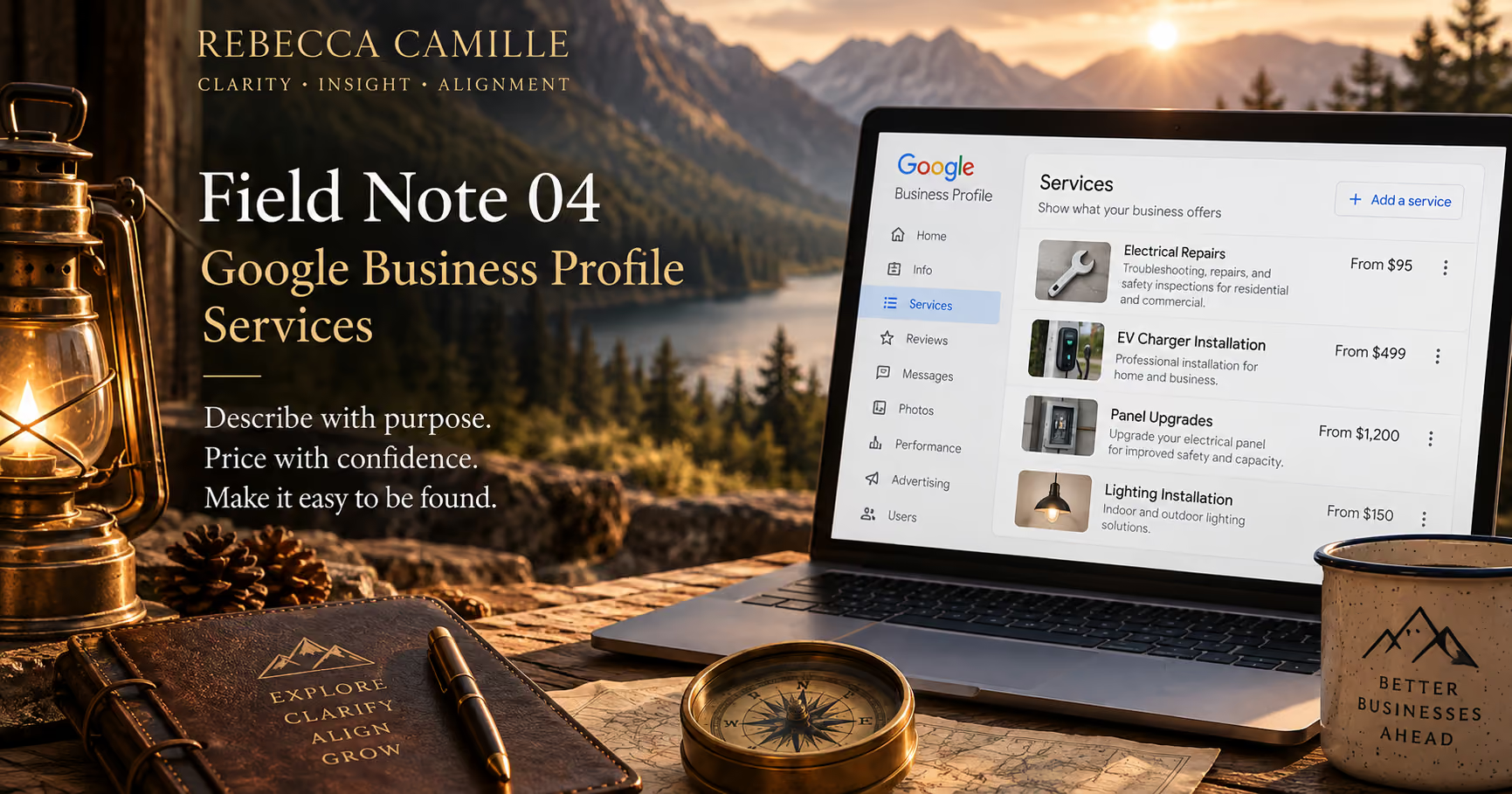
Compare the services listed on your Google Business Profile with the services shown on your website.
What does the business provide that the profile never says it provides?
Those missing services may be more important than adding another variation of something already represented.
A service name may make perfect sense to you or others in your industry and still mean very little to a prospective customer.
Use service names that clearly communicate what someone can expect.
When a description is available, use it to clarify the service rather than simply repeating its name.
Specific doesn't have to mean complicated.
A customer should not need to decode the service before deciding whether it fits what they need.
A service name may not tell someone everything they need to know.
Use the description to explain what the service includes or clarify details that aren't apparent from the name.
Google gives you up to 300 characters, so keep it focused on the service itself.
You can also add pricing information.
Google lets you choose No price, Free, Fixed, or From, depending on how the service is priced.
A customer who finds the service they need, understands what it includes, and is comfortable with the price may just book.
If online booking is set up on the Business Profile, they have a way to move from finding the service to booking it right from the profile.
That booking path can also be measured.
When tracking is set up properly, the path from the Business Profile to the booking platform can show whether someone who clicked to book went on to complete the action.
That turns the booking link into more than a convenience for the customer.
It becomes another trail the business can follow.
Once the services are filled out, check whether the rest of the business tells the same story.
Look at the website and the booking platform, if there is one.
Compare the services and language you find.
Does the same service appear under different names?
Does the profile list a service the website doesn't mention?
Does the website feature a service that's missing from Google?
Does the booking platform offer services that aren't represented in either place?
When your services align across the profile, website, and booking platform, both Google and prospective customers get a clearer picture of what your business offers.
A completed service description and accurate pricing give Google more information to understand the offering, give the customer more information to make a decision, and can shorten the path from searching to booking.
Don't fill the service list just because Google gives you the space.
Use it deliberately.
The services shown on a Google Business Profile are one part of how a business presents what it offers.
A Clarify Assessment looks across the business to see whether those pieces support what the business actually provides and where it wants to go.
Choose how this site remembers your preferences.
These cookies help us identify the most useful paths for visitors, allowing us to enhance the user experience while protecting your privacy.